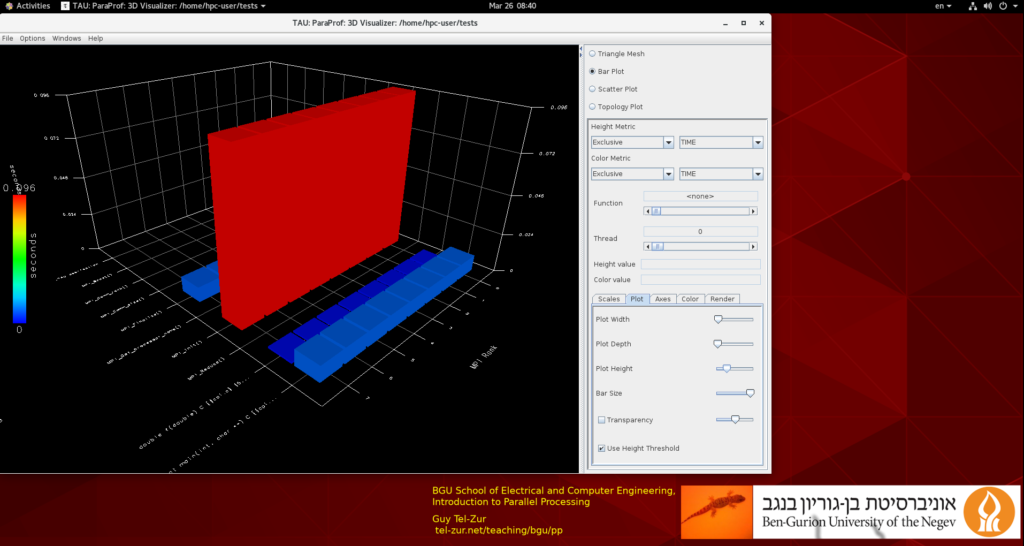
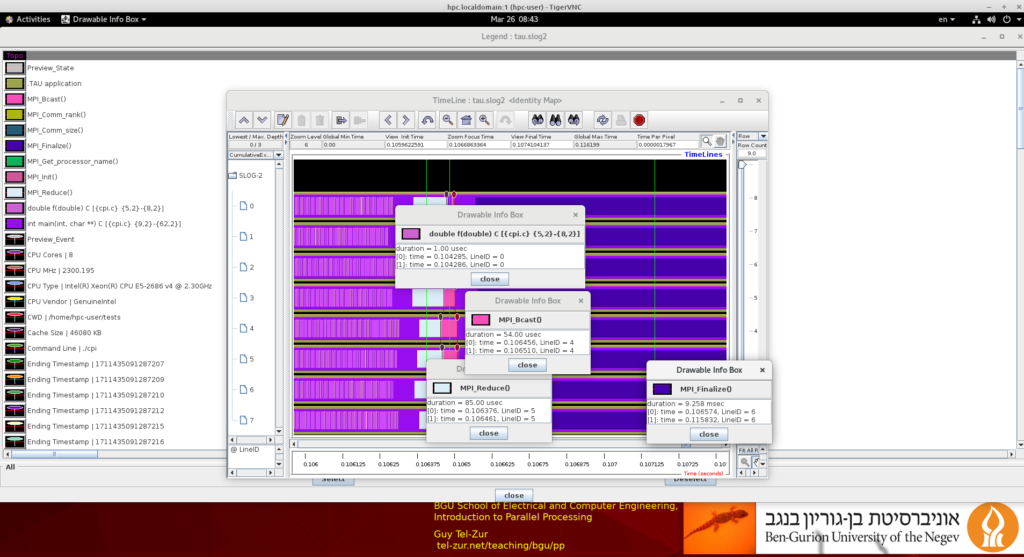
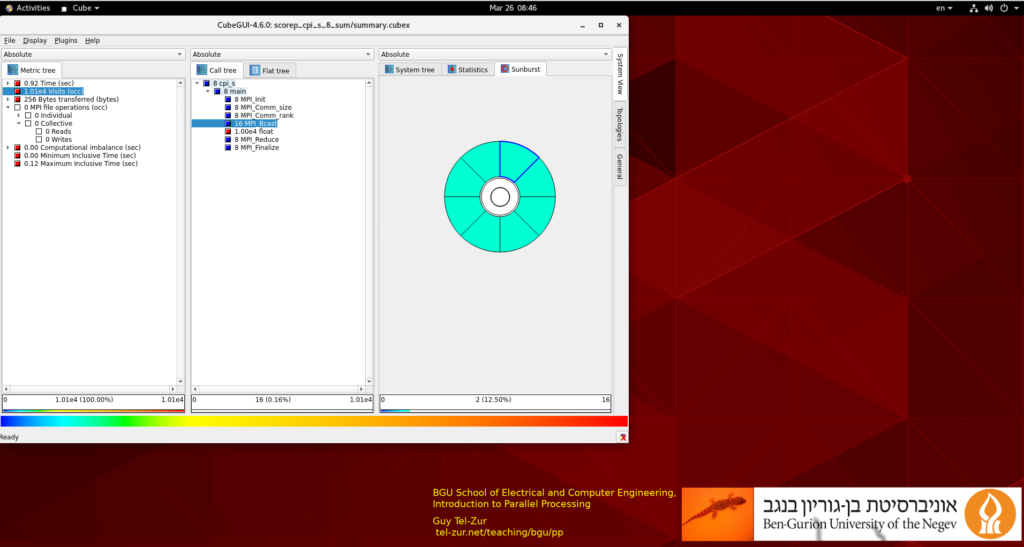
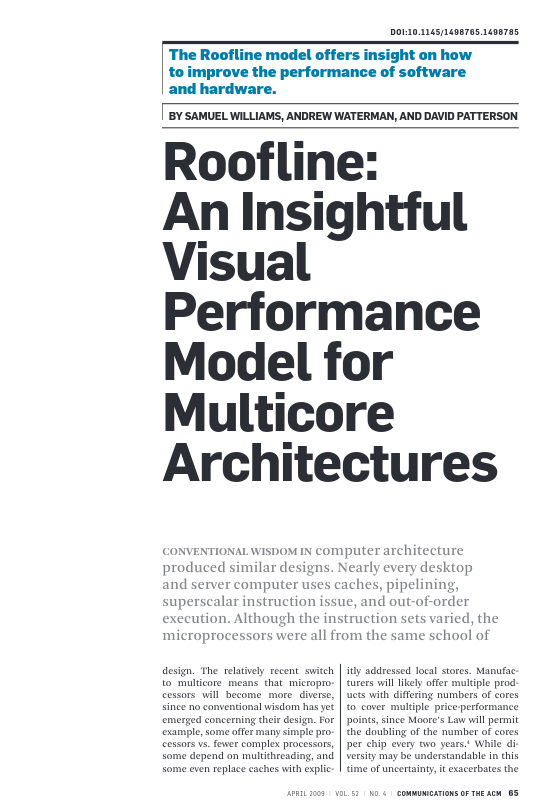
In this blog post, I describe a method for generating AI images locally using open-source tools. This approach is both free and privacy-preserving. However, there are no free lunches; it comes with trade-offs, including slower performance and occasional quality limitations.
The content of this post is as follows:
- Introduction (motivation + constraints)
- System Architecture
- Setup and integration:
- Ollama + LLM
- Open WebUI
- Automatic1111
- Experiments
- Limitations & Lessons Learned
- Conclusions and recommendations
Let’s begin…
- Introduction. Image generation using AI is a hot topic; however, it usually involve a paid plan from one of the commercial providers. I wanted to investigate the possibilities to create images for free and locally using only open-source tools.
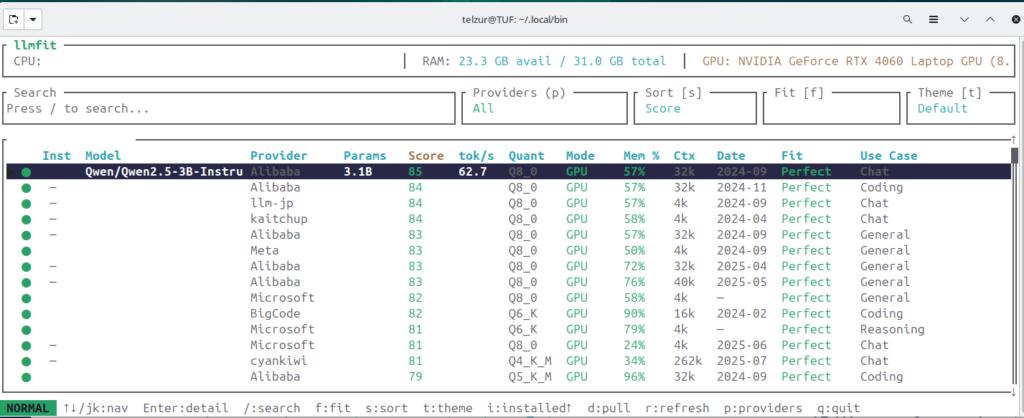
- System architecture. My computer is running Ubuntu 24.04.4 LTS (Noble Numbat). The computer has an Intel i9 processor with 32GB RAM and an Nvidia GeForce RTX4060 with 8GB VRAM. Therefore the combined GPU/CPU memory constraints must be carefully considered. This is a constraint that should be taken into account when choosing an LLM. In that respect I recommend selecting an LLM according to llmfit ranking. LLMFIT provides a compatibility score of many LLMs to your specific platform, see Figure 1.
- Setup and integration. As an AI hosting platform I use Ollama which can easily be installed using a one line command:
curl -fsSL https://ollama.com/install.sh | sh
After a few trial and error cycles I finally chose qwen2.5:7b (which occupies about 4.7GB of disk space). The installation and verification is done like this”
$ sudo systemctl status ollama  # is ollama running ok? see Figure 2
$ ollama pull qwen2.5:7b        # download and install the model
$ ollama list | grep qwen2.5:7b # verify the model installation
qwen2.5:7b          845dbda0ea48    4.7 GB    6 weeks ago
$ ps -ef | grep ollama
ollama  15871  1  0 09:14 ?    00:01:10 /usr/local/bin/ollama serve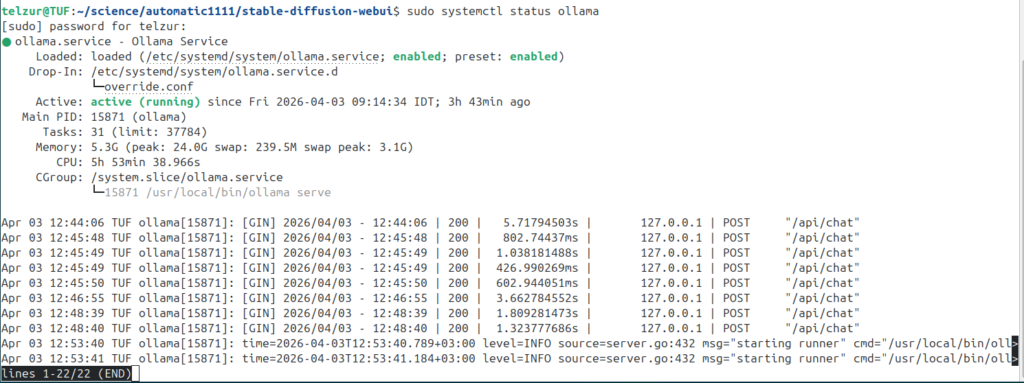
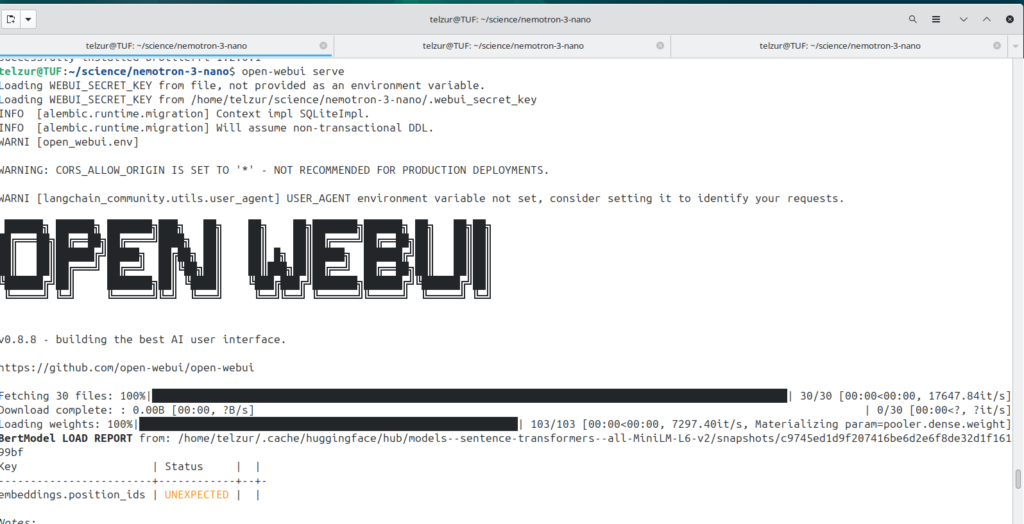
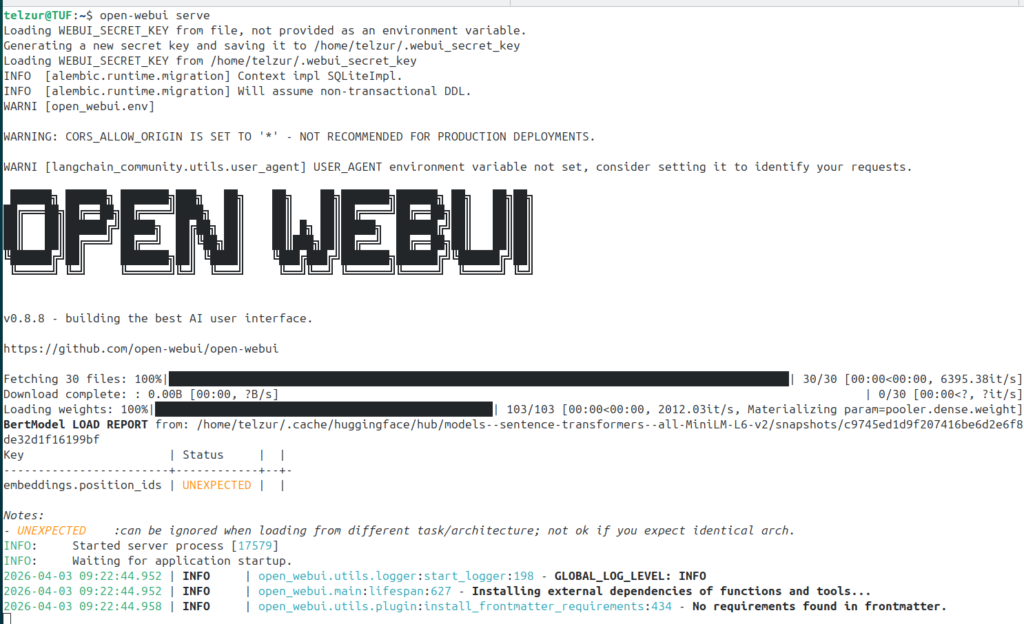
To provide a user-friendly interface, I used Open WebUI, which is started from the command line with:
$ open-webui servesee Figure 3.
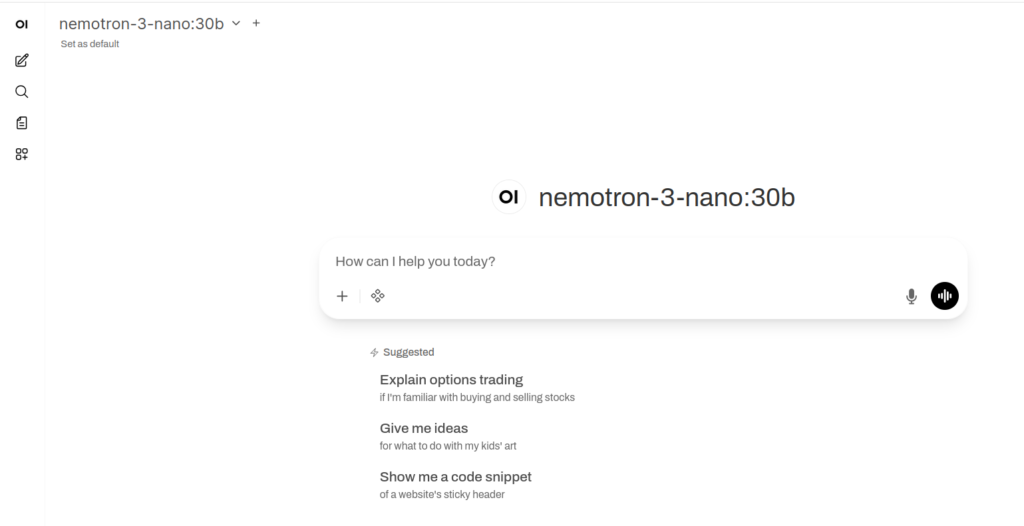
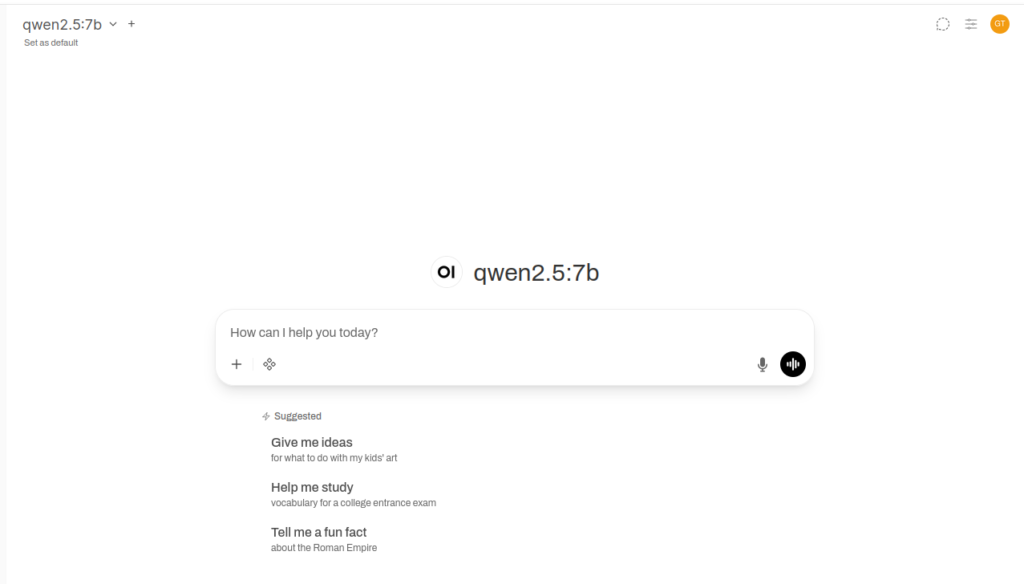
Then, point the browser to http://localhost:8080 to access the dashboard, Figure 4.
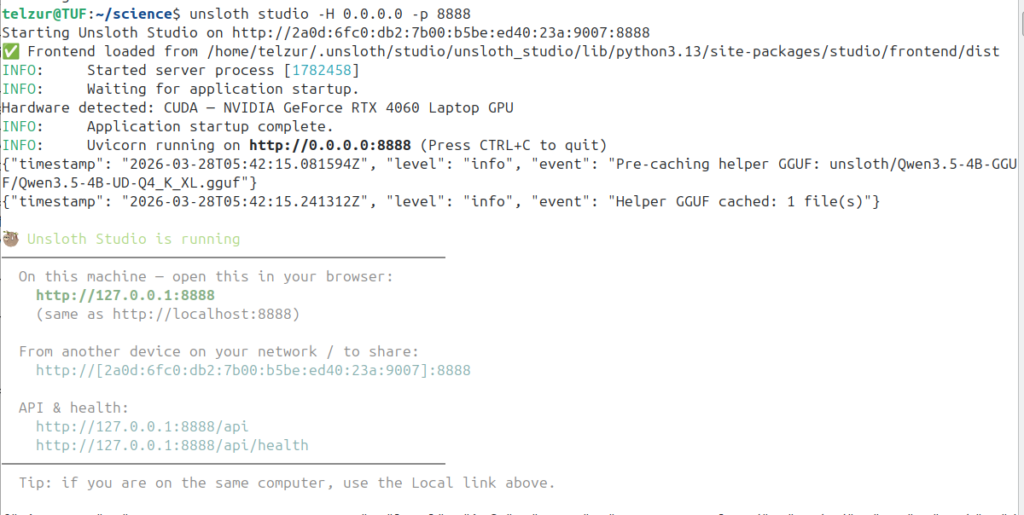
At this stage you can enjoy chatting with the model but it is still not ready for generating images. For that you need to install another, external, tool and create a link between the Open WebUI and the image generation tool. The tool I am referring to is called Automatic1111 which is a web interface for Stable Diffusion, implemented using the Gradio library. Automatic1111 can also work as a stand-alone tool. In order to start Automatic1111 execute the script webui.sh under the installation folder which is obtained from their GitHub repository. However, in my case I had to modify the starting shell command by introducing a few flags so the invocation, in my case, is as follows:
LD_PRELOAD=/usr/lib/x86_64-linux-gnu/libtcmalloc_minimal.so.4 ./webui.sh --lowvram --api --cors-allow-origins "*" --no-half --no-half-vae --skip-python-version-checkThe --lowvram flag is essential for GPUs with limited memory (such as 8GB), while --api enables integration with external tools like Open WebUI. Upon starting Automatic1111 a new tab in the browser will be opened, see Figure 5.
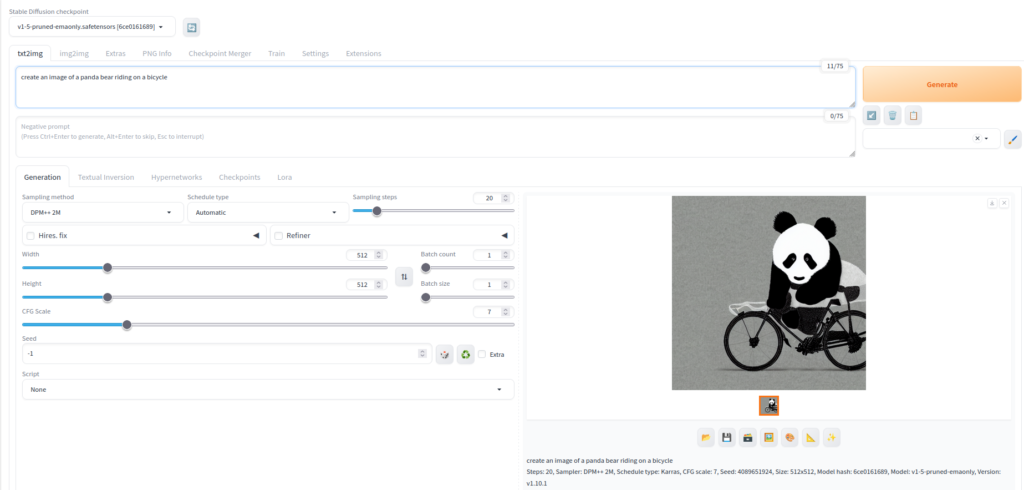
As can be seen in Figure 5 it is ready for creating images. For example I asked it to create a panda bear riding a bicycle in the prompt field under txt2img and after a few seconds the image was generated. This standalone tool is not sufficient for a continuous AI workflow because if one wants to continue the conversation with the AI about the images it must rely on conversational context and memory. Therefore, there is a need to create a link between Automatic1111 and the Open WebUI. In order to do that navigate, in Open WebUI, to the admin menu and from there to images and do a few configurations, see the next screenshot
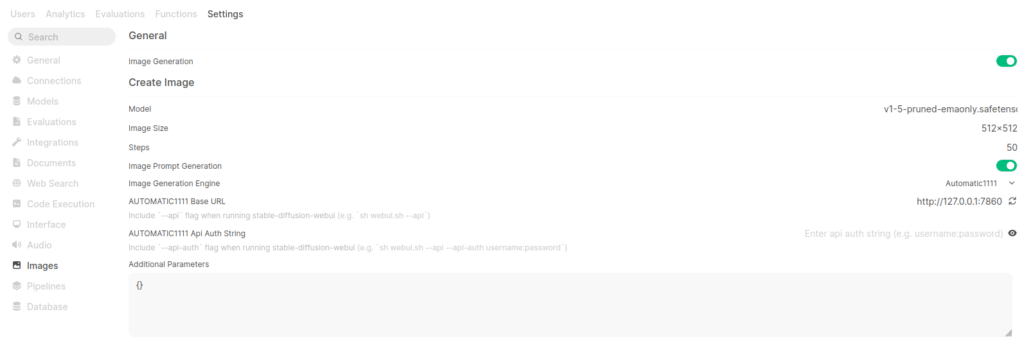
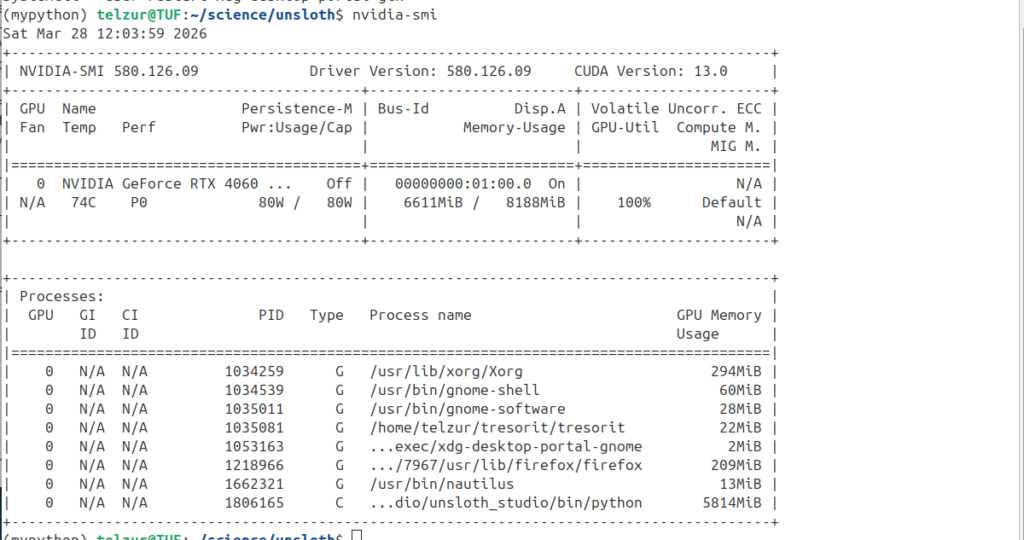
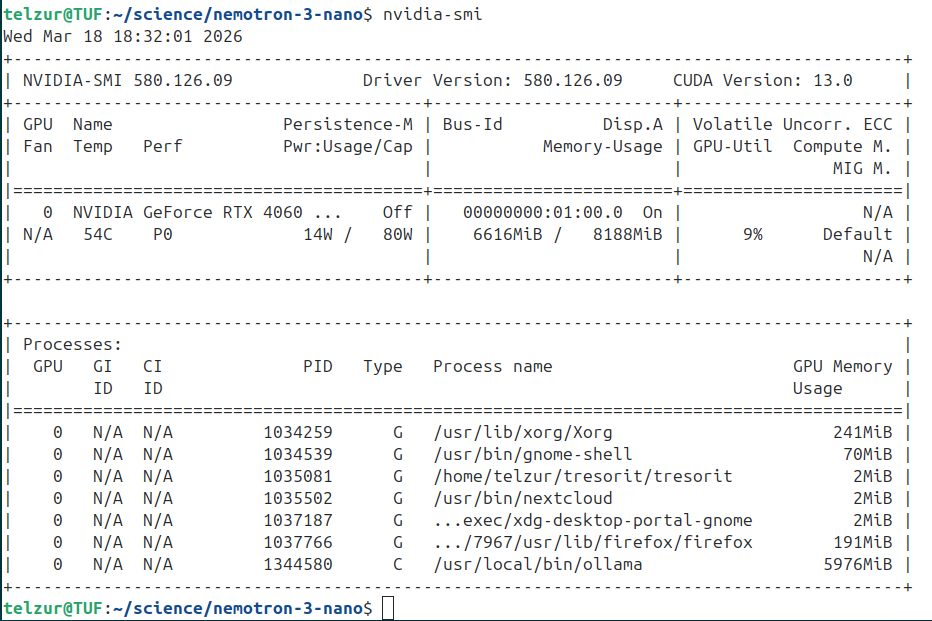
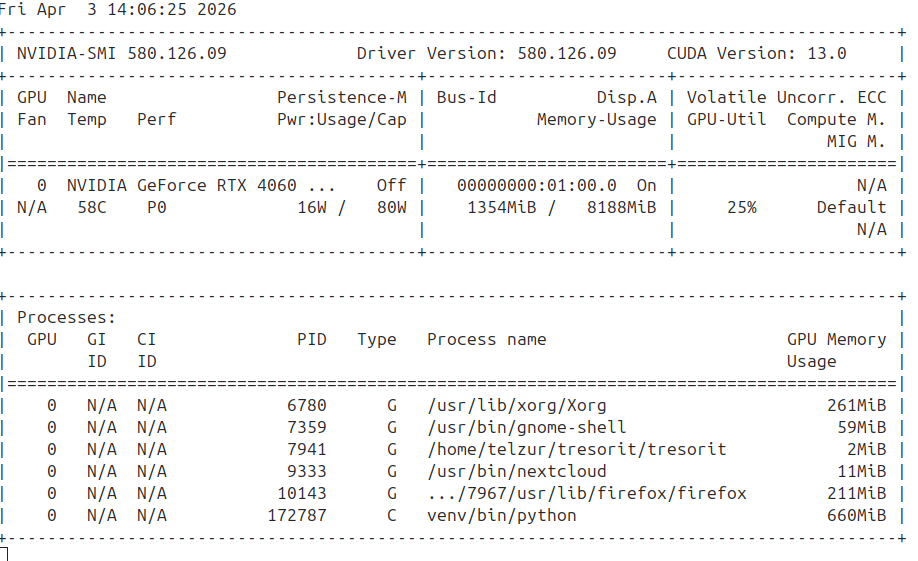
Because of the limited memory on the GPU I configured the LLM in Open WebUI to run on the CPU, reserving GPU memory for image generation via Automatic1111. In the nvidia-smi screenshot, Figure 7, below one can see that ollama is absent but there is a running a Python script (Automatic1111).
To sum up this paragraph, the complete workflow of the image generation process is as follows:
User → Open WebUI → (LLM via Ollama) → Image Request → Automatic1111 (Stable Diffusion v1.5-pruned-emaonly) → Generated ImageWhere: Ollama does the LLM orchestration, Open WebUI does the frontend and orchestration layer, and finally Automatic1111 is used as the image generation backend.
It is important to note that the LLM (via Ollama) generates the textual prompt and orchestration, while the actual image generation is performed by Stable Diffusion through Automatic1111, version 1.5-pruned-emaonly, which is lightweight and well-suited for GPUs with limited VRAM (such as 8GB).
4. Testing the model for graphics creation
Before creating images you need to click on “Integrations” at the bottom left of the prompt area and select images. An image icon will appear right to the Integration icon – see Figure 8.

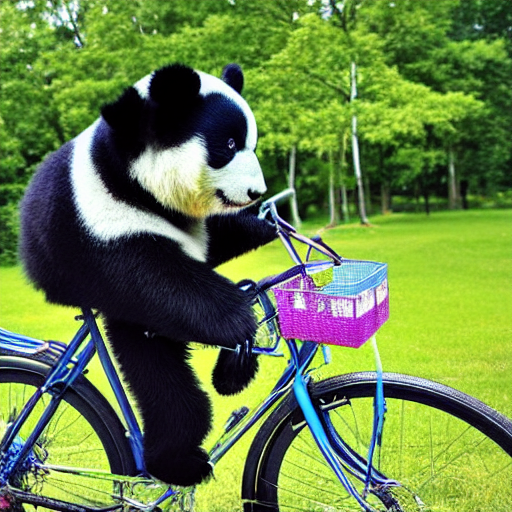
I made a request “Draw a panda bear riding a blue bicycle” and Figure 9 illustrates the result.
In another example I asked: “Create an image of a farm house with a single large black cat lying by the entrance door” and the result (after a few iterations), see Figure 10. Despite my request the cat isn’t located according to the instruction.
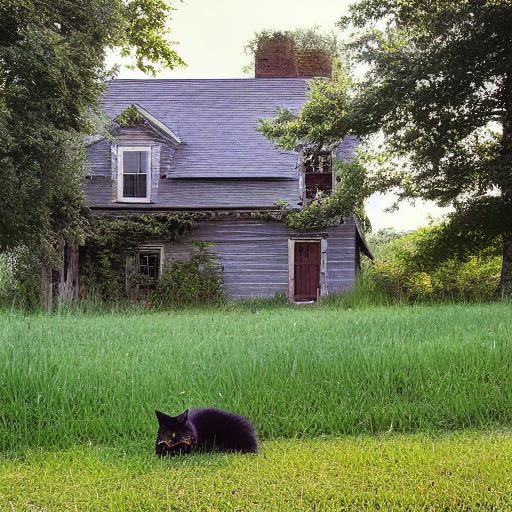
In fact, other tests were disappointing most of the time. Part of it is because the prompt wasn’t accurate enough. Prompts must be precise and structured, often requiring explicit constraints and compositional guidance.
At this point I wanted to test the newly released Gemma 4 model with the hope to obtain better images. The full Gemma 4 is too heavy for my computer so I tried the 4-bit quantized model and in addition I had to do additional tricks in order to test it. Gemma 4 installation under ollama is simple:
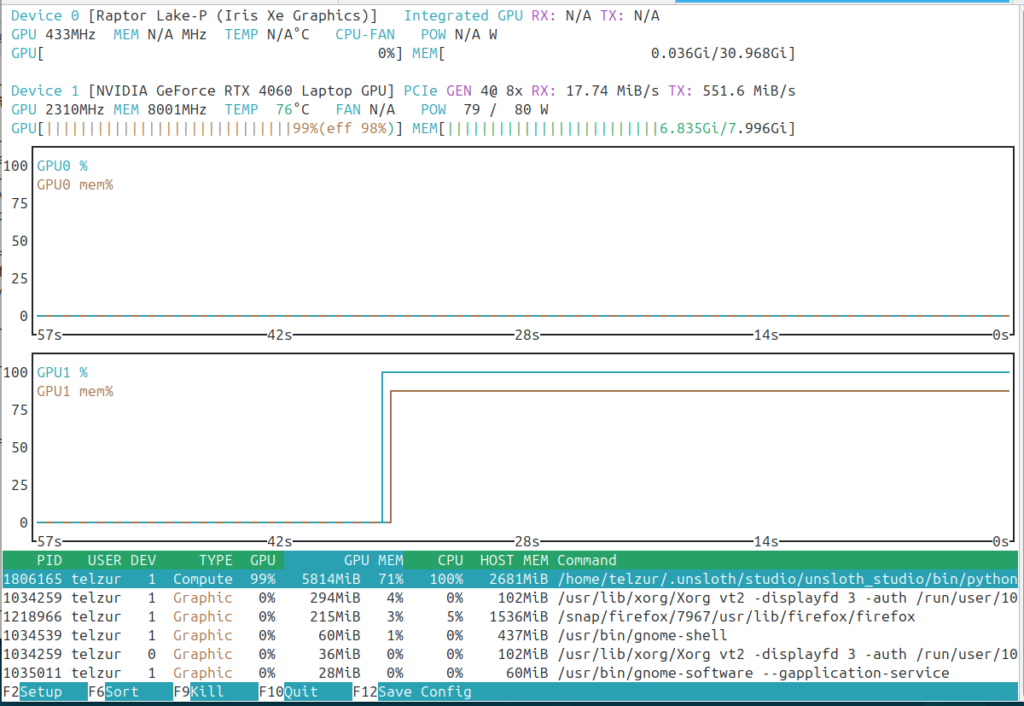
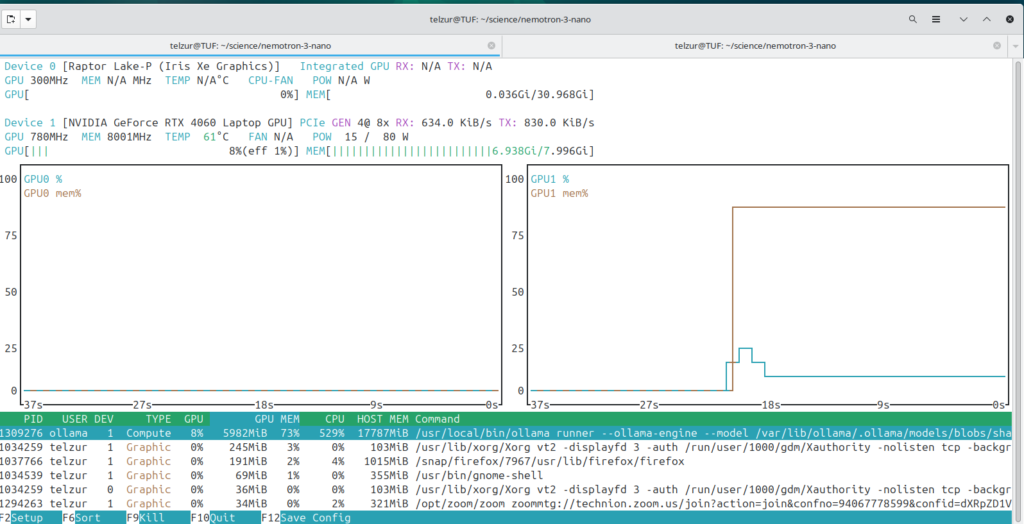
ollama run gemma4:31b-it-q4_K_MGemma 4 used a significant part of the VRAM and together with Automatic1111 it was too much for the GPU to handle, see Figure 11.

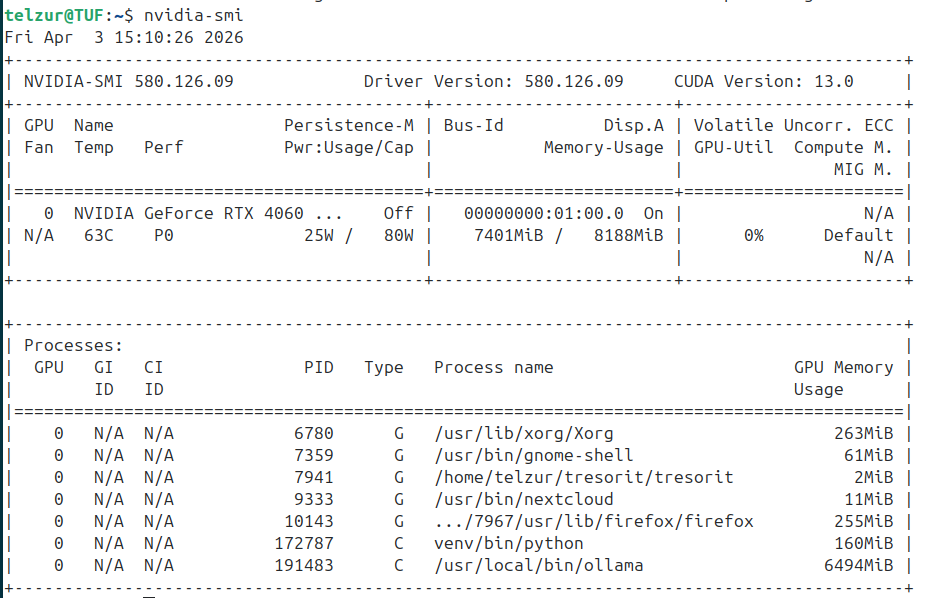
This experiment failed due to insufficient memory:
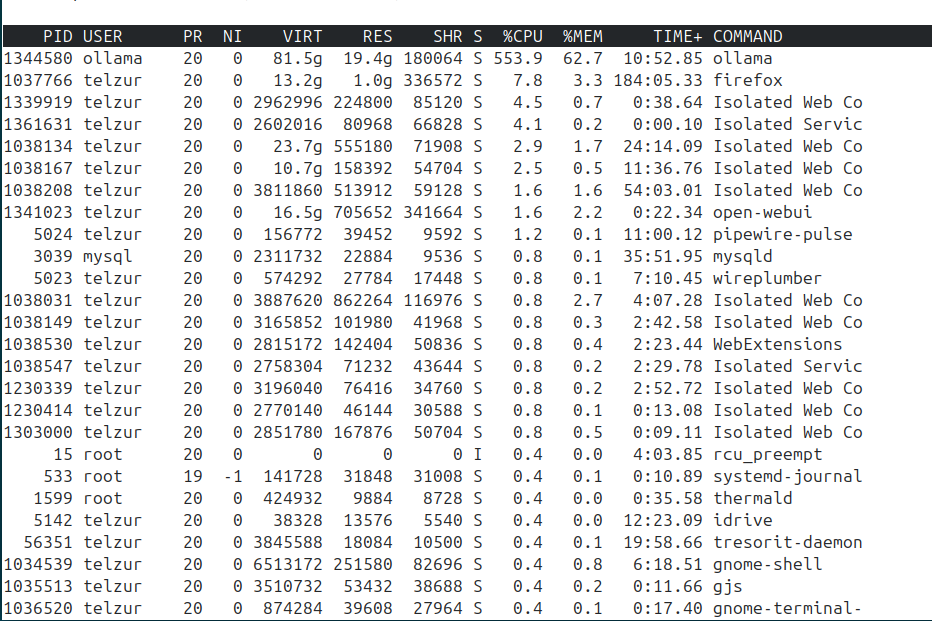
CUDA out of memory. Tried to allocate 20.00 MiB. GPU 0 has a total capacty of 7.62 GiB of which 55.25 MiB is free. Including non-PyTorch memory, this process has 566.00 MiB memory in use. Process 191483 has 6.34 GiB memory in use. Of the allocated memory 403.14 MiB is allocated by PyTorch, and 30.86 MiB is reserved by PyTorch but unallocated. If reserved but unallocated memory is large try setting max_split_size_mb to avoid fragmentation. See documentation for Memory Management and PYTORCH_CUDA_ALLOC_CONFAt this point I had to free additional memory and offload Gemma 4 to the CPU in order to allow Automatic1111 to use it as it needs. I closed my default Firefox browser which I always use with many open tabs and I switched to Brave browser with just 2 open tabs – see Figure 12.
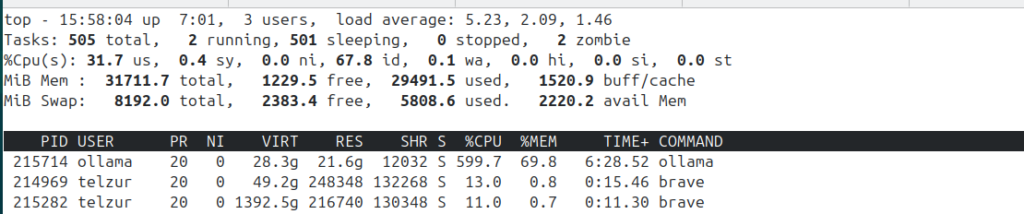
In addition, I attempted to run a CPU-only variant of the Gemma 4 model (forcing execution without GPU acceleration). I called this modified model gemma4-31b-cpu. Finally I used a very pedantic prompt:
"I want an image of a **rustic farmhouse entrance** [Style Clause]."
"There must be a **single large black cat** lying on the welcome mat right by the **front door** [Core Target]."
"You must prioritize the cat as the central focus of the composition [Restriction Clause]."
After a long waiting time, the generated image appeared – Figure 13:
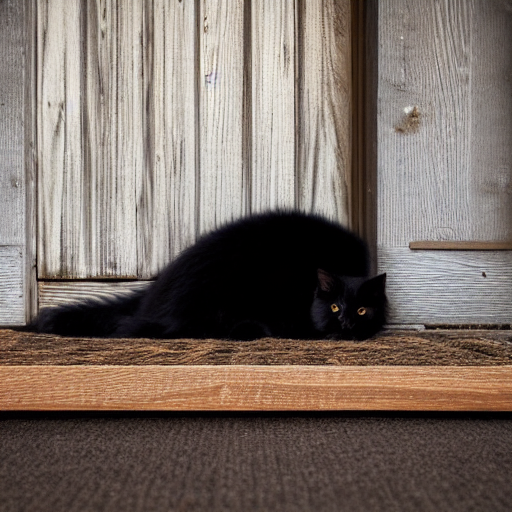
5. Limitations & Lessons Learned. The image generation process was extremely slow and caused significant memory pressure, eventually leading to CUDA stalls due to conflicts between Ollama’s memory management and GPU offloading mechanisms. So I had to give up Gemma 4 for image generation and I switched back to qwen2.5:7b. Using the same prompt through the integrated pipeline (Open WebUI + Automatic1111), the following image was generated while using qwen2.5:7b as the LLM, see Figure 14.
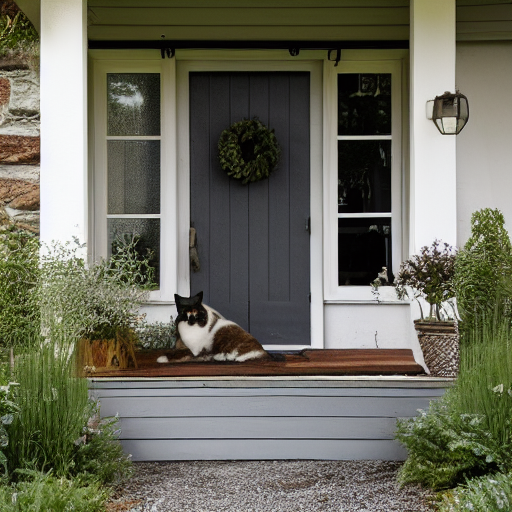
Repeating this query once more generated the image shown in Figure 15.
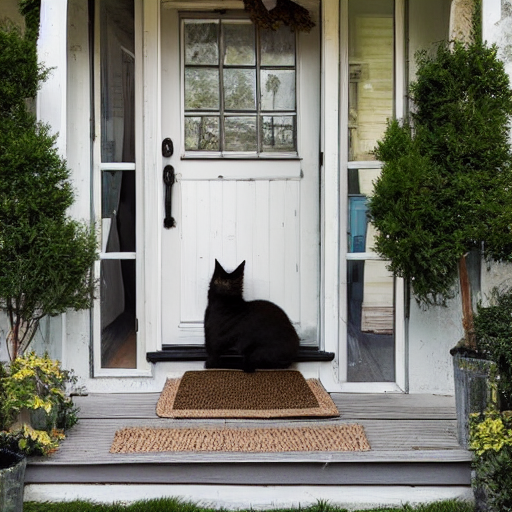
6. Conclusions and recommendations
In summary, this approach successfully demonstrates that local AI image generation using open-source tools is feasible. However, on commodity hardware, it remains limited by memory constraints and performance bottlenecks.
While not yet practical for everyday use, it provides valuable insight into the trade-offs involved and serves as a solid foundation for further experimentation as hardware and models continue to improve.
I hope you found this exploration useful.
-Guy
********Addendum********
After publishing this post, I tested a smaller variant of Gemma 4 (gemma4:e4b-it-q4_K_M) instead of the larger 31B model.
Interestingly, the smaller model worked out-of-the-box and was able to participate in the image generation pipeline without the severe memory issues encountered previously.
This reinforces an important practical insight:
The main limitation is not the model family itself, but rather the model size relative to available GPU memory.
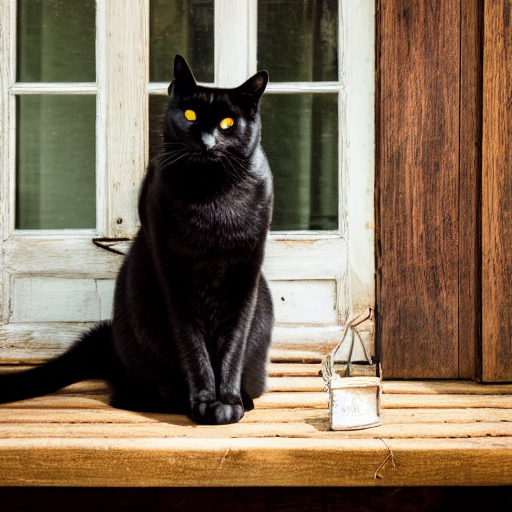
In constrained environments (e.g., 8GB VRAM), smaller quantized models can provide a workable balance between performance and resource usage. Enjoy the new black cat image: